
Turn Your TV Screensaver Into a Family Memory Wall
Everyone is debloating their smart TVs right now. Here's the gentler version: swap the stock photos on your screensaver for your own family memories, on Fire TV, Google TV, Apple TV, Roku and Samsung.
The Memory Murals Team • November 17, 2026
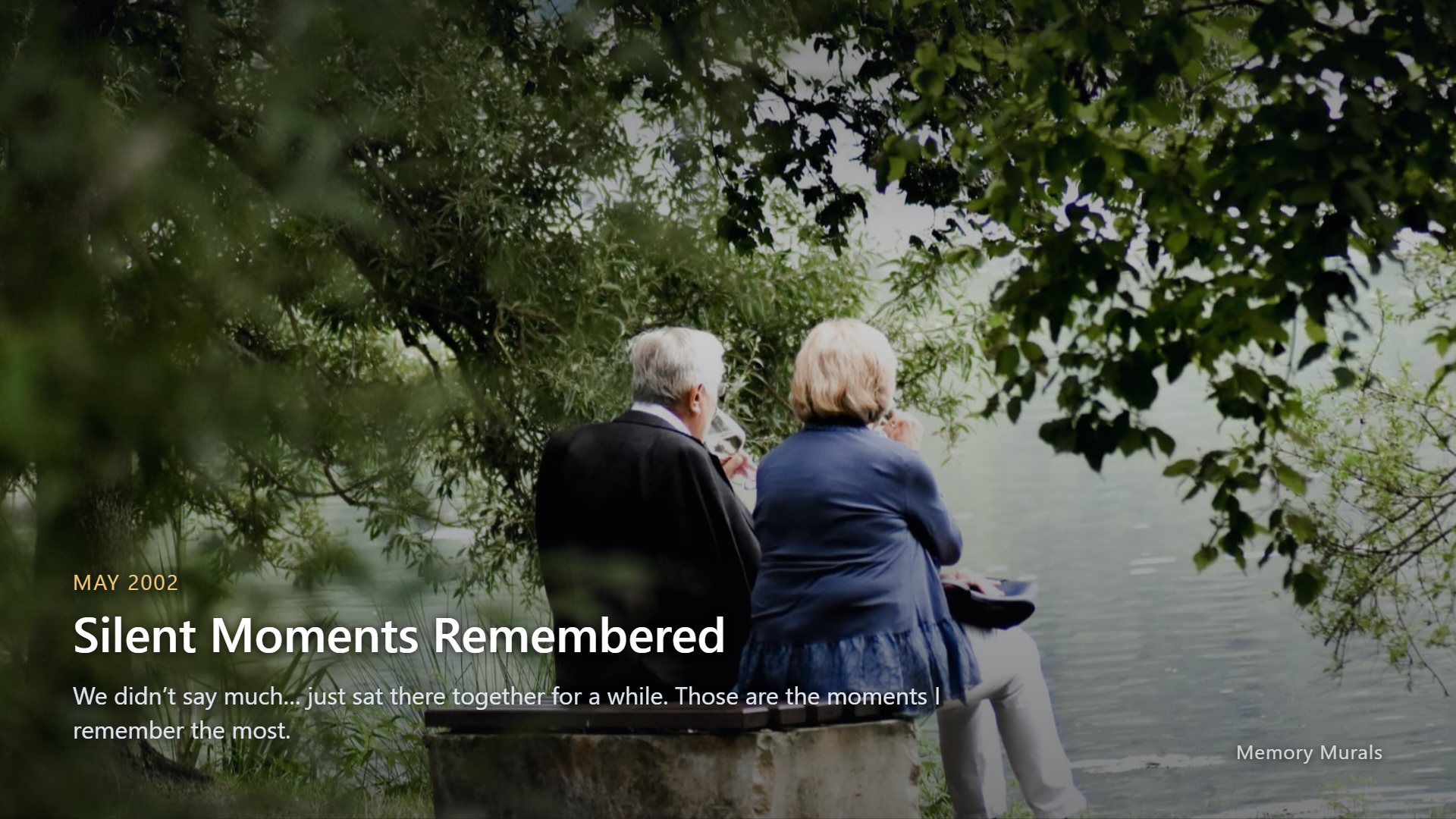
The TV in most living rooms spends more time doing nothing than playing anything. And when it's been idle long enough, it fills the room with somebody else's pictures. A fjord. A lighthouse. A bowl of lemons in a kitchen nobody you know has ever stood in. On some platforms, an ad for a show you've already decided not to watch.
Lately a lot of people decided they'd had enough of that. The "debloat your smart TV" trend has been everywhere: people pointing AI coding assistants at their Android TV and Fire TV sets to switch off sponsored rows, telemetry and preinstalled apps, and swapping the home screen for something plain. Some of the results look great. Some of it is also risky: It's FOSS warned that disabling things in the wrong order can leave the Home button opening a factory test app.
There's a much gentler version of the same idea, and it doesn't void anything. Every major TV platform already has a way to show your own photos when the TV is idle. Most people just never set it up, because their best photos are scattered across three phones and a shoebox.
So here's the plan: pull your favorite family memories out of Memory Murals in one go, then point your TV's screensaver at them.
The short version
Export your archive from Memory Murals (Account Settings → Data & Storage → Download everything). Pick 50 to 100 landscape photos from the photos/ folder. Upload them to the photo service your TV already understands (Amazon Photos for Fire TV, Google Photos for Google TV, an iCloud shared album for Apple TV, Backdrops for Roku, SmartThings for Samsung) and select that album as the screensaver.
Step 1: Export your photos from Memory Murals
You can't pick the best 80 photos of your family from a phone camera roll with 14,000 screenshots in it. Well, you can. It takes a weekend. The archive export is faster because your photos are already sorted by memory and date.
Download your archive
Open Account Settings
In Memory Murals, open the menu under your profile picture and choose Account Settings, then Data & Storage.
Decide about private memories
Under Download everything there's a checkbox: Include my private memories and letters. It's unticked by default, and for a TV we'd leave it that way. Anything in the export is readable by whoever opens it, and a screensaver is about as public as a photo gets in your own house.
Prepare the archive
Tap Prepare my archive. Big libraries take a few minutes. You can close the page; we email you a download link when it's ready. The link stops working after seven days, so download it soon.
Unzip it and open the photos folder
Inside you'll find a photos/ folder with every photo that belongs to a memory, named by date and memory title, like 2019-06-14--summer-at-the-lake--01.jpg. Photos in your library that aren't attached to any memory are in unfiled/. If the archive came in several parts, extract them all into the same folder.
Those file names do a lot of quiet work. Sort the folder by name and you're looking at your family in chronological order, which makes it much easier to pick a few from every decade instead of 60 from last summer.
One honest limitation: the export covers the memories in your own account. If a sibling keeps their own archive, they'd export theirs.
It's a real backup, too
The same zip contains an index.html you can open offline in any browser, plus your videos, voice recordings and text. If you've never downloaded a copy of your archive, this is a good excuse. We're fans of keeping two copies in two places.
Step 2: Set up the screensaver on your TV
Each platform wants the photos in its own cloud. That's the slightly annoying part. You only do it once, though, and refreshing the album later takes minutes.
We checked every path below against the platform's own help pages in October 2026. Menu names still shift between models and software updates, so if yours doesn't match exactly, look for the nearest equivalent.
Amazon Fire TV: an Amazon Photos album
- Upload your chosen photos to Amazon Photos (the app or the website) and put them in a new album. Amazon says Prime members get unlimited photo storage; everyone else gets 5 GB.
- On your phone (not the TV), open the Amazon Photos app, tap the Amazon icon, choose Personalize Amazon Devices, select your Fire TV and add the album. On the website, it's Personalize Devices → your device → Add collections. If the app just spins, fully close it and try again, or use the website instead.
- On many Fire TVs you can also pick it on the TV: Settings → Display & Sounds → Screensaver → Current Screensaver.
One catch: if you've switched off or "debloated" the Amazon Photos app on your TV, turn it back on first, or the screensaver has nothing to show.
Newer Fire TV models use Amazon's Ambient Experience instead of the classic screensaver, and your Amazon Photos can show there too. Two caveats from Amazon's own help pages: photo display doesn't work in Kids Mode, and Ambient Experience starts after the screensaver advertisements, so you may still see a sponsored screen before your family appears.
Google TV (including Chromecast with Google TV and Google TV Streamer): Google Photos
- Upload the photos to Google Photos and put them in an album with a clear name.
- On the TV: Settings → System → Ambient mode, then Settings → Source, and choose Google Photos.
- Approve the verification prompt on your phone (or enter your Google Account PIN), select your album and choose Confirm.
In the same settings you can set the slideshow speed and choose Basic (one photo, full screen) or Dynamic (animations and collages, on devices with at least 2 GB of RAM). Google notes that archived photos won't appear even if they're in the album, which catches people out.
Apple TV: a shared album
- On your iPhone or Mac, create a Shared Album in Photos and add your chosen pictures. (Shared Albums has to be turned on in your iCloud Photos settings.)
- On the Apple TV, make sure Settings → Profiles and Accounts → [your profile] → Photos → Shared Albums is on.
- Open the Photos app on the Apple TV, go to Shared Albums, select the album and choose Set as Screen Saver.
You can also get there from Settings → Screen Saver → Memories & Slideshows → Albums. The nice thing about a shared album: you can invite family members to add to it, and their photos turn up on your TV without you lifting a finger.
Roku: Backdrops (formerly Photo Streams)
If you followed an older guide to Roku Photo Streams and got lost, that's why. Roku has moved Photo Streams into its Backdrops app.
- From the Home screen, open the Backdrops app and choose Add your photos → Upload photos.
- Scan the QR code with your phone and follow the prompts, signing in at backdrops.roku.com with your Roku account.
- In Backdrops, go to Options → Backdrops preferences → Auto-start and choose 10 minutes. Roku also suggests setting Settings → Theme → Screensaver start time to Disable screensaver so the two don't fight.
Roku's limits are 10 albums, 100 photos per album, uploaded 20 at a time, in JPG, PNG, HEIC or WEBP. That 100-photo cap is honestly not a bad editor.
Samsung: Ambient Mode, or Art Mode on The Frame
Samsung is the one where your model really matters.
- Ambient Mode (many recent Samsung TVs): in the SmartThings app on your phone, open Devices, select your TV, tap the Ambient tab, then My Album. Pick a template, tap Select photos, crop if needed and tap View on TV. Samsung notes that availability and settings vary by model and country.
- The Frame (2018 and later): in SmartThings, select your TV, choose Art Mode, tap Add Your Photos, pick your photos and tap Save on The Frame. You can show one photo or a slideshow.
Both routes pull photos from your phone, so copy your favorites from the export onto your phone first.
| Feature | Physical | Digital |
|---|---|---|
| Fire TV | Amazon Photos album | Screensaver ads may still play first on some models |
| Google TV | Google Photos album | Archived photos are skipped; Basic mode shows one photo full screen |
| Apple TV | iCloud shared album | Family can add photos to the shared album themselves |
| Roku | Backdrops album | 100 photos per album, 10 albums |
| Samsung | SmartThings (Ambient Mode or Art Mode) | Depends heavily on model and year |
Fire TV
- PhysicalAmazon Photos album
- DigitalScreensaver ads may still play first on some models
Google TV
- PhysicalGoogle Photos album
- DigitalArchived photos are skipped; Basic mode shows one photo full screen
Apple TV
- PhysicaliCloud shared album
- DigitalFamily can add photos to the shared album themselves
Roku
- PhysicalBackdrops album
- Digital100 photos per album, 10 albums
Samsung
- PhysicalSmartThings (Ambient Mode or Art Mode)
- DigitalDepends heavily on model and year
How to make it look good, not like a camera roll
Setting this up takes 15 minutes. Making it something you actually stop and look at takes a little curation.
Pick 50 to 100, not everything
Put 2,000 photos on a screensaver and you'll see the blurry ones as often as the great ones. Fewer, better photos come round often enough to feel familiar, which is half the point.
Favour landscape photos
TVs are wide. Portrait phone shots get cropped or sit between black bars. Grandma's tall portrait is still worth including; just don't build the whole album out of them.
Mix the decades
Sort the photos/ folder by name and grab a handful from each era. A 1970s wedding photo next to last month's birthday party makes people in the room start talking.
Refresh it each season
Swap in a new batch at the start of each season. Summer holidays in July, old Christmases in December. It takes ten minutes and keeps the wall from becoming wallpaper.
An "on this day" album. Because exported files start with the date, you can search the folder for today's month and day. On 27 October, search for -10-27-- and you'll get every memory from that date in any year. Make a small album from the results each week and your TV becomes a quiet anniversary reminder. It's more work than a set-and-forget album, and it's also the version people remember.
One more thing. The exported photos are sized for screens, and they look fine on a living room TV at normal viewing distance. If you've got the original camera file for a really special photo and a big 4K set, use the original.
Think about who's in the room
A screensaver is on show to every guest, babysitter and visiting in-law. Leave out anything you wouldn't put in a frame on the mantelpiece: hospital photos, the ex, the kids in the bath. That's also why we'd keep private memories out of the export you use for this.
We went a step further (an experiment, not a product)
Here's where we got a bit carried away.
On one of our own Fire TVs, we replaced Amazon's home screen with a much plainer one: four app tiles, a clock, and photos from a Memory Murals demo account fading slowly behind the tiles, each with its date and the memory's title.
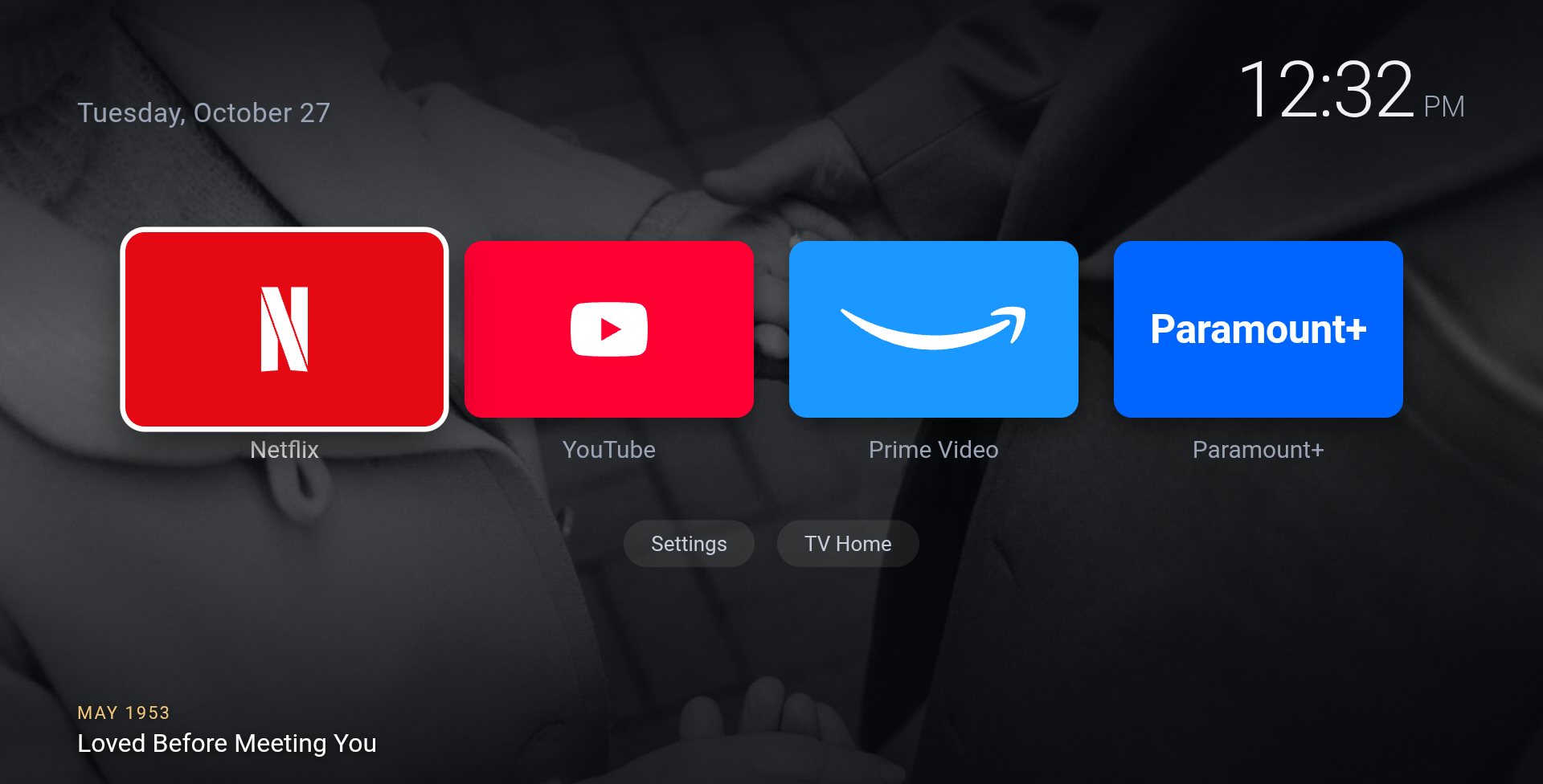
After a short while with no remote presses, the tiles fade back so the photo comes through.
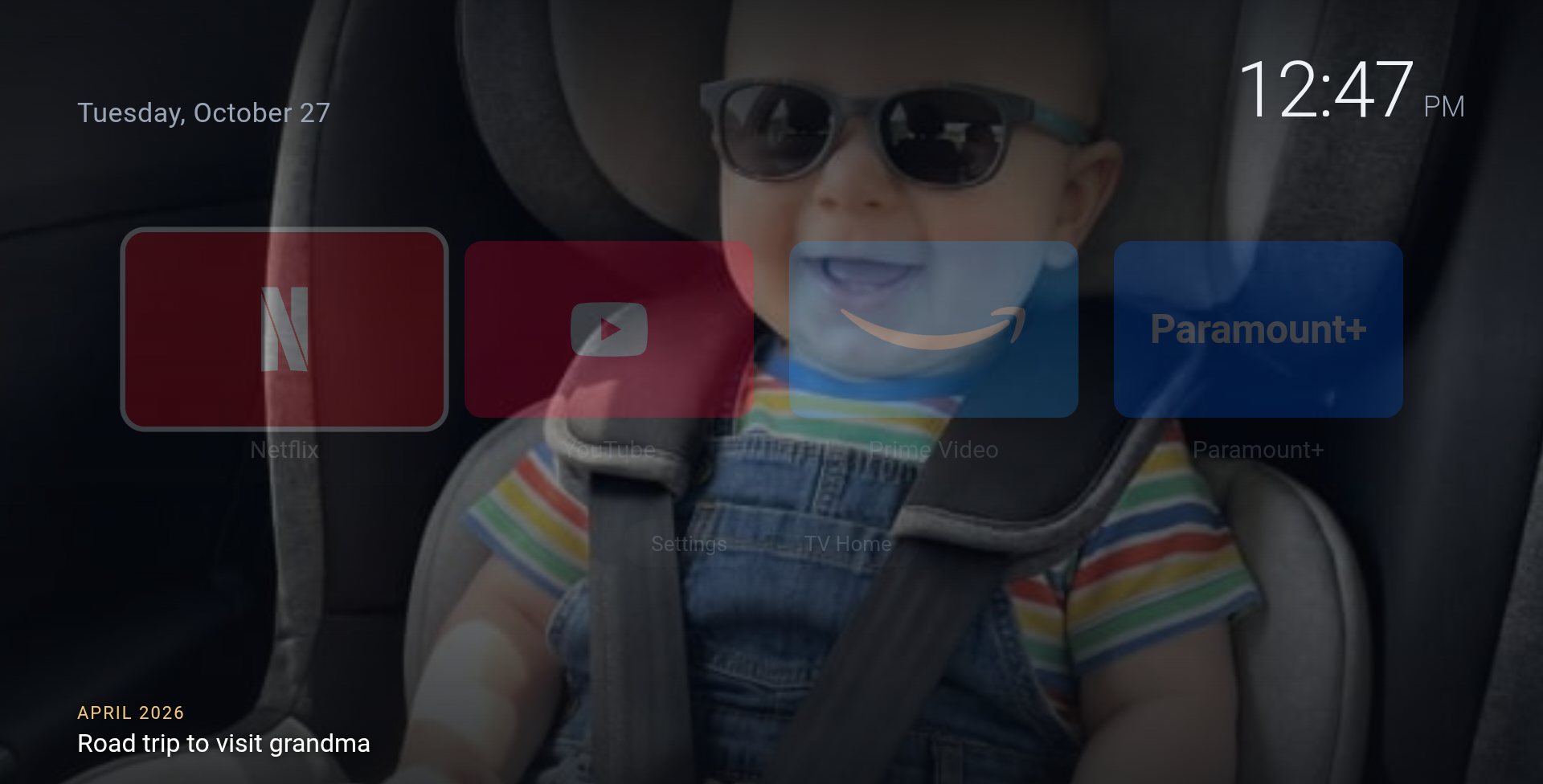
Leave the remote alone a bit longer and it becomes a full-screen memory wall, with the story from the memory underneath.
We like it a lot. But we want to be straight about what it is. It's a weekend experiment running on our own TV. It isn't an app you can download, and it isn't simple to set up: it needs developer settings, a computer, and a tolerance for Fire OS updates undoing your work. We wouldn't send anyone off to do it from a blog post.
What we don't know is whether anyone besides us wants it.
Want this on your TV? Tell us.
If a memory wall like this is something you'd use, email us at support@memorymurals.com with the subject "TV memory wall", and tell us which TV or streaming stick you have. Replies like yours decide whether we take it any further.
Why this is worth 20 minutes
The default screensaver is designed to be inoffensive. Pretty places, nobody's face, nothing that means anything to anyone. That's fine for a hotel room.
Your living room is different. The photos that only you have, of the people who actually sit on that sofa, are a better use of a 55-inch screen than a lighthouse. Kids who walk past their great-grandparents' wedding photo every day grow up knowing what those people looked like. That's not nothing.
If you'd rather have a dedicated frame on the kitchen counter, we compared digital photo frames for grandparents separately. And if the photos you want are still in boxes, start with how to digitize old photos at home.
Ready to give your family's photos a home worth putting on the big screen? Try Memory Murals free →
Get 50 questions to ask your parents — before the stories are gone
The exact prompts families use to draw out the stories nobody ever wrote down. Free, straight to your inbox.
No spam. Unsubscribe anytime.
Frequently asked questions
Can I put my own photos on my TV screensaver?
On most streaming platforms, yes. Fire TV uses an Amazon Photos album, Google TV uses Google Photos albums in Ambient mode, Apple TV can use a shared or personal album from the Photos app, Roku uses its Backdrops app, and many recent Samsung TVs show your photos in Ambient Mode or, on The Frame, Art Mode. Menus vary by model and software version.
How many photos should I put on a TV screensaver?
Somewhere between 50 and 100 favorites works best. A few hundred photos means most of them only appear once every few days, and it also means the weaker shots get as much screen time as the great ones. Roku's Backdrops caps each album at 100 photos anyway.
Why do some photos look cropped or have black bars on the TV?
TVs are wide (16:9) and most phone photos are tall. Landscape photos fill the screen; portrait photos either get cropped or shown with bars on the sides, depending on the platform. Choose mostly landscape shots for the album.
Will the photos be private if I put them on the TV?
Anyone in the room can see the screen, so treat the album like a photo on the mantelpiece. Leave out anything you wouldn't frame. If you export from Memory Murals, private memories and letters are excluded unless you tick the box to include them, which is the right default for a TV.
Do I still see ads on the Fire TV screensaver?
Possibly for a short while. Amazon's help pages describe its Ambient Experience as starting after the screensaver advertisements, so on some models a sponsored screen may appear before your photos take over. Removing that entirely requires changes to the device that Amazon doesn't support.
Related Stories

Comparisons
Best Digital Photo Frames for Grandparents: Share Memories Easily
Looking for the perfect digital photo frame for your grandparents? We compare top options like Aura and Skylight, focusing on what truly matters: ease of setup, simple photo sharing for the whole family, and a beautiful display. Discover how to choose a frame that bridges distances and keeps them connected.
Patrick Moore • July 16, 2026
How-To Guides
What to Do with Your Parents' Photo Collection: A Gentle Estate Guide
A practical, emotionally honest guide for going through your parents' photo collection — whether you're cleaning out a house after a death, helping a parent downsize, or staring at the boxes for the third weekend in a row. What to keep, what to let go, what to scan first, and how to forgive yourself for the parts that hurt.
The Memory Murals Team • April 28, 2026
Comparisons
Digital Photo Frame vs. Private Family App: Which is Best for Your Memories?
Digital photo frames offer a beautiful, passive display of your favorite moments. But do they preserve the stories behind the photos? We compare the simple joy of a frame with the deep, lasting value of a private family app to help you decide which is the right home for your family's legacy.
Patrick Moore • October 19, 2026
Now give it somewhere to live.
The file you just saved outlasts nothing on its own. Put it where your family can still find it in thirty years.