
How to Organize Family Photos (2026)
You have a shoebox of prints nobody labeled and 47,000 photos on your phone you can't find anything in. Here's the step-by-step system for turning both into one organized, searchable archive — without quitting your job to do it.
Patrick Moore, Founder • May 27, 2026
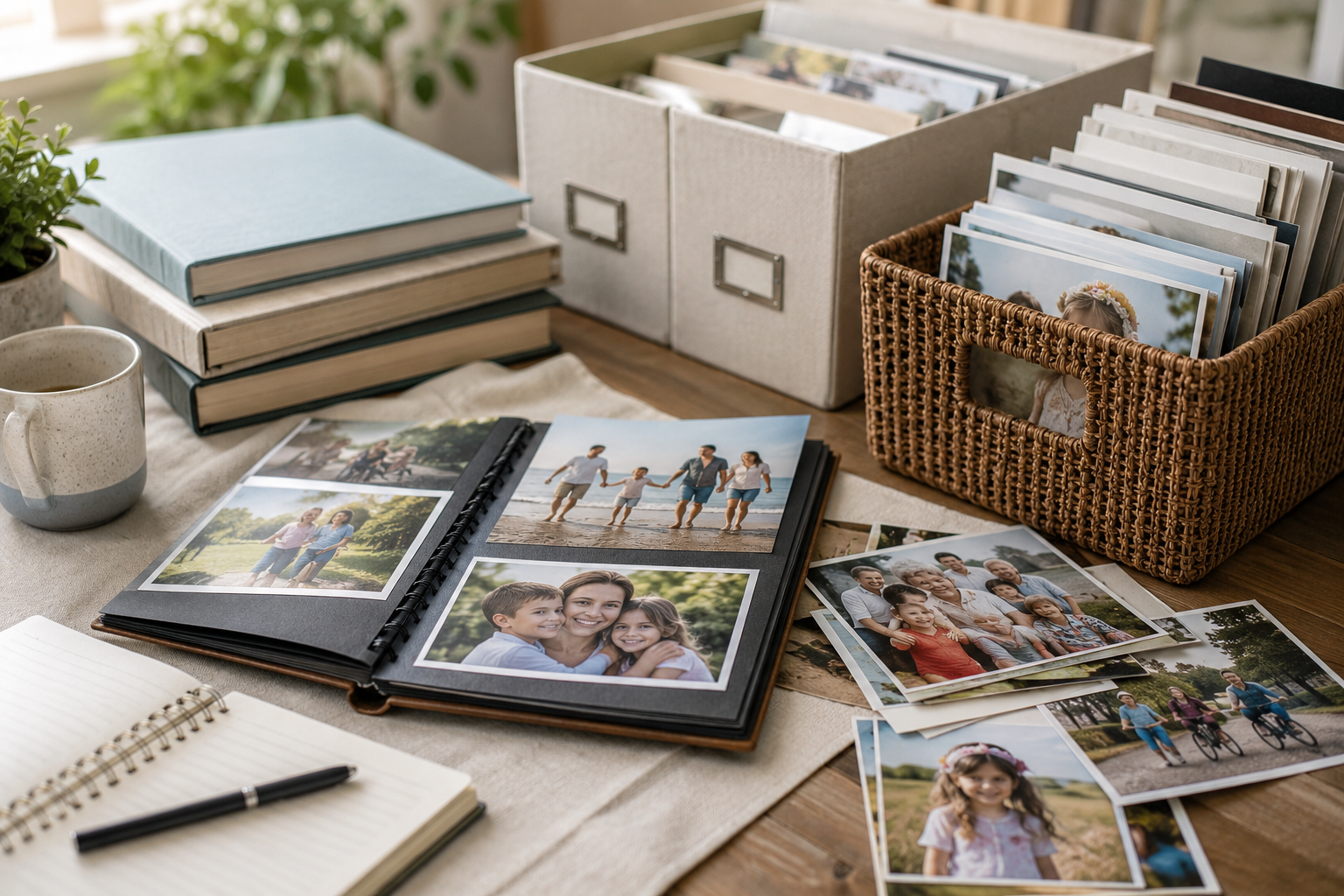
There are two photo problems in your house, and they're the same problem wearing different clothes.
The first is physical: a shoebox, or three, on a closet shelf. Loose prints, a few albums with the sticky pages that are slowly eating the photos, an envelope of negatives nobody has looked at since the film was developed. Maybe a box you inherited and haven't been able to face — if that's you, start with the gentler estate-photo guide first and come back here once the grief part is handled.
The second is digital: 47,000 photos on your phone. You can find any single one in two seconds by searching a date or a face. But you can't find the story — who the woman in the background is, why your dad is laughing, what happened ten minutes later. And there are so many of them that the volume itself has become a kind of forgetting. (We wrote a whole piece on why thousands of photos can leave you feeling like you've preserved nothing — that ache is real and it's the reason this guide exists.)
This is the post that fixes both. Not in a heroic weekend — those don't happen — but in a system you can run an hour at a time. If you'd rather ease in with something tiny first, here are five gentle ways to start a family archive. Otherwise, here's the whole thing.
The short answer
To organize decades of family photos, gather everything into one place, digitize the prints, delete the duplicates, tag people with face recognition, and identify the unknowns while someone still can — then save the stories behind the keepers and back it all up in two places. Use date as your folder structure; make everything else (people, places, events) a searchable tag.
Three layers, not one pile
The reason photo organizing feels impossible is that people treat it as one giant sorting task. It's actually three different jobs stacked on top of each other, and they need different tools.
The pile (the atoms)
The physical prints and the raw image files. The job here is capture and consolidation — get everything into one digital place at decent quality. This is mechanical work, not decisions.
The chaos (the metadata)
Dates, duplicates, people, places. The job here is structure — make the collection searchable so you can find the photo of Grandma's kitchen in 1974 in five seconds. Software does almost all of this for you now.
The stories (the soul)
Who these people were, why the moment mattered, the voice that explains it. The job here is preservation, and it's the one no organizer app can do — because it doesn't live in the file. It lives in a person, and people don't last as long as JPEGs.
Most people do layer one, bounce off layer two, and never reach layer three — which is the only layer that actually matters in fifty years. The system below is built so you reach all three.
The seven-step system
From shoebox to searchable archive
Gather everything into one place
Every box, drawer, hard drive, phone, and old laptop. See the true size before you sort.
Digitize the prints
Phone-scan the shoebox. Flatbed only for true heirlooms. Don't buy hardware first.
Kill the duplicates
Run a duplicate finder before tagging. A large share of most libraries is repeats.
Tag people with face recognition
Let software group the same face across decades, then name each person once.
Identify the unknowns
Sit with the oldest person in your family while they still know who everyone is.
Save the stories
Record the voice and the context behind the keepers — the part no file holds.
Back it up in two places
One copy is not a backup. At least two homes, one of them offline.
Step 1 — Gather before you sort
The single biggest mistake is starting to organize before you know how much there is. You sort one drawer beautifully, feel great, and then find two more boxes in the garage and lose heart.
So first, just gather. Pull every physical source into one room. Copy every digital source — phone, spouse's phone, the old laptop, the SD cards, the random USB stick, the Google and iCloud accounts — into one master folder on one computer. Don't sort yet. You're taking inventory, not making decisions. Seeing the true size is what lets you plan in finishable batches instead of drowning.
Step 2 — Digitize the prints
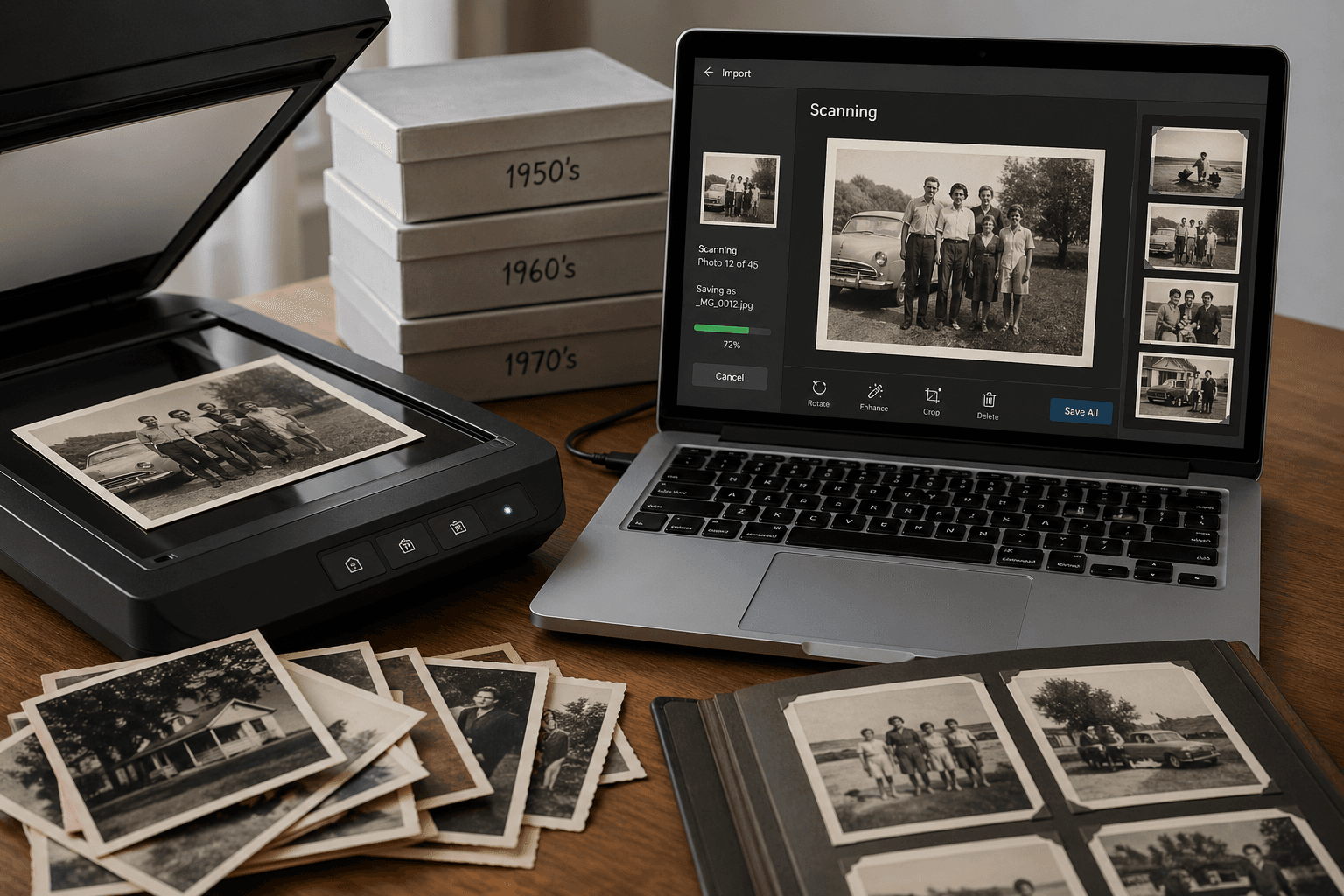
Now turn the physical pile into files. For 90% of a normal shoebox, your phone is the right tool — a free scanning app handles glare and cropping and gets you most of the way to flatbed quality in a fraction of the time. Save the flatbed scanner for a small set of true heirlooms and anything you'll print large. The full method, the apps, the Polaroid and slide warnings, and the "don't peel photos off album pages" rules are in our dedicated walkthrough: how to digitize old photos at home.
The one rule that matters at this stage: don't let "I need to buy a scanner first" become the excuse that kills the project. Scan with what you have, today.
Step 3 — Kill the duplicates first
Before you tag a single face, de-dupe. Large family libraries are routinely full of duplicates — often a large share of the whole collection: the same vacation backed up from three devices, burst shots, re-saved downloads, the "edited" copy next to the original. If you skip this, you'll spend Step 4 labeling the same photo five times.
A dedicated duplicate finder catches both exact copies and near-duplicates, lets you keep the best frame of each, and bulk-deletes the rest. This is the least sentimental, highest-leverage hour in the whole project. Do it once, up front.
Step 4 — Tag people with face recognition (the privacy version)
This is where modern software earns its keep. Instead of opening 12,000 photos one at a time, you let a face-recognition engine cluster the same person across your entire library — including across decades and through aging — and you simply confirm "yes, that's Aunt Rose." Name a cluster once and the label flows to every photo she's in.
Cloud tools like Google Photos and Apple Photos do this well and are perfectly fine for casual use. But if you'd rather not upload your family's faces to a tech giant's servers to get it, run the face recognition locally instead. A desktop organizer like Tonfotos does exactly this: it scans your library on your own machine, groups people across decades regardless of age or partial visibility, finds and removes duplicates, maps photos by location, and can even assemble a family tree from the people it tags — all offline, on hardware you control, with no subscription. Its whole pitch is "your photos under your control," which is the same instinct that makes someone organize their family history by hand in the first place.
Whichever you choose, the principle is identical: let the machine group the faces; you supply the names. That's the move that turns 12,000 unsorted photos into a library you can search by person.
Step 5 — Identify the unknowns while you still can
Face recognition can tell you this is the same woman in 60 photos. It cannot tell you that she's your great-aunt Marjorie, the one nobody liked after the thing she said at the wedding. That information lives in exactly one or two aging heads, and the clock on it is real.
So the most urgent task in this entire system is also the least technical: sit down with the oldest person in your family, put the unknown photos in front of them, and record them naming people — out loud, on your phone, with the audio running the whole time. We wrote the full playbook for this, including the "Saturday" approach and what to do with the pile nobody can name, in what to do with the old family photos nobody labeled. If you do nothing else from this guide this month, do this. The software will wait. The memory won't.
Step 6 — Save the stories, not just the files
Here's the step every other "organize your photos" guide on the internet skips — and it's the only one that matters in fifty years.
When you're done with Steps 1–5, you'll have a beautifully organized, fully searchable, de-duplicated, face-tagged archive. And it will still be silent. A descendant in 2075 will be able to find every photo of your mother instantly and will have no idea who she actually was.
Organizing handles the files. It cannot hold the story. For that, you have to record it — the voice, the half-finished tangents, the reason a particular ordinary Tuesday made the cut. That's the entire reason we built Memory Murals: a private family archive where a photo lives alongside the recorded memory and the context that explains it, where you can connect people across your family's story, and where the next generation inherits the meaning, not just the image. Do this for your few hundred keepers, not all 12,000 — the goal isn't to narrate everything, it's to make sure the photos that matter arrive with their stories attached.
Step 7 — Back it up in two places
A single copy is not a backup; it's a future loss with a delay timer. Once the archive is organized, protect it: at least two copies, in two locations, with at least one of them offline (an external drive in a drawer counts). One cloud sync is a copy, not a backup. The full pattern we actually use — and the stories of the people who learned this the hard way — is in the family backup.
What to actually use at each step
There's no single app that does all of this well, and anyone who tells you otherwise is selling something. Match the tool to the job:
| The job | What to use | Why |
|---|---|---|
| Digitize prints | Phone scan app (free); flatbed for heirlooms | Phone is 80% of flatbed quality at 5% of the effort; flatbed wins only on fragile or large prints |
| Remove duplicates | A dedicated duplicate finder (e.g. Tonfotos, built-in) | Reclaims a large share of a typical library and stops you labeling the same photo twice |
| Organize + tag by face | Local desktop organizer (Tonfotos) or cloud (Google/Apple Photos) | Groups people across decades automatically; local keeps faces off third-party servers |
| Repair damaged prints | An AI photo restoration tool | Fixes fading, scratches, and water damage the scan can't |
| Preserve the stories | A private story archive (Memory Murals) | Captures the voice and context no organizer can — the part that matters longest |
Digitize prints
- What to usePhone scan app (free); flatbed for heirlooms
- WhyPhone is 80% of flatbed quality at 5% of the effort; flatbed wins only on fragile or large prints
Remove duplicates
- What to useA dedicated duplicate finder (e.g. Tonfotos, built-in)
- WhyReclaims a large share of a typical library and stops you labeling the same photo twice
Organize + tag by face
- What to useLocal desktop organizer (Tonfotos) or cloud (Google/Apple Photos)
- WhyGroups people across decades automatically; local keeps faces off third-party servers
Repair damaged prints
- What to useAn AI photo restoration tool
- WhyFixes fading, scratches, and water damage the scan can't
Preserve the stories
- What to useA private story archive (Memory Murals)
- WhyCaptures the voice and context no organizer can — the part that matters longest
If the prints themselves are faded, torn, or water-stained, restoration is its own step — we compared the best AI photo restoration tools for family photos with honest notes on what each one can and can't fix.
A note on privacy and ownership
Notice the through-line in the tools above: the strongest setup keeps the master copy on storage you control, and uses software that works offline. A local organizer like Tonfotos handles the sorting on your own machine; a private archive like Memory Murals holds the stories without a public feed or ads. Cloud copies are great as one of your backups — just don't let the only authoritative version of your family's history live inside an account that can be locked, repriced, or shut down. Own the archive. Rent the conveniences.
The mistakes that quietly kill the project
Sorting before gathering
You organize one box perfectly, then find three more and lose all momentum. Inventory the whole collection first.
Building deep folders by person and event
A photo with three people can only live in one folder. Use shallow date folders; put people and events in tags and face data instead.
Tagging before de-duping
Label the collection while it's still riddled with duplicates and you'll do the same work several times over. Kill duplicates first.
Waiting for the perfect free weekend
It isn't coming. The project that happens is the one you do in one-hour batches starting tonight.
Date for structure, tags for everything else
Every photo has a date and it's never ambiguous. Let folders handle 'when' and let software handle 'who' and 'what.'
Record the names before the software stage
The oldest person in your family is the only one who can identify the unknowns. That session is more urgent than any tagging.
Finish the keepers, not everything
Narrate and back up the few hundred that matter. You don't owe every blurry parking-lot photo a story.
The honest verdict
A whole lifetime of photos really can become one organized, searchable, backed-up archive — but the order matters more than the apps. Gather, then digitize, then de-dupe, then tag, then identify, then preserve the stories, then back up. If the digitize step is the one that stalls the whole project, the photo scanning services we compared will get through a thousand prints faster than you'll get through a hundred. The software (a local organizer for sorting and faces, a private archive for the stories) makes the middle steps almost effortless now; what software can't do is the human step — sitting with the person who still remembers and capturing the voice before it's gone. Buy the tools if you want. But put that conversation on the calendar this week. Everything else can wait a month. It can't.
You don't have to do this in one sitting, and you shouldn't try. Gather tonight. Scan a batch this weekend. Run the duplicate finder next week. The point isn't a perfect archive by Sunday — it's a system that finally moves, an hour at a time, until the shoebox and the camera roll both become something your family can actually hold onto.
Ready to give the photos that matter their stories back? Try Memory Murals free → — a private family archive where the photo lives with the voice and the story that explains it.
Get 50 questions to ask your parents — before the stories are gone
The exact prompts families use to draw out the stories nobody ever wrote down. Free, straight to your inbox.
No spam. Unsubscribe anytime.
Frequently asked questions
What's the best way to start organizing decades of family photos without getting overwhelmed?
Don't start by sorting. Start by gathering everything into one place — every shoebox, drawer, hard drive, and phone — so you can see the true size of the job. Then work in one-hour sessions on a single batch at a time (one box, one decade, one folder). The overwhelm comes from trying to hold the whole collection in your head at once. A batch is finishable in an afternoon; the whole collection never is.
Should I organize photos by date, by person, or by event?
Use date as the backbone (a simple year/decade folder structure) because every photo has one and it never becomes ambiguous. Then layer people and events on top using tags or face recognition, not folders — a photo can have three people and two events in it, so those belong on the photo as searchable metadata, not as a place you have to file it. Date for structure, tags for everything else.
How do I organize photos by face without uploading everything to the cloud?
Use a desktop photo organizer that runs face recognition locally on your own computer instead of a cloud service. A local tool scans your library, groups the same person across decades of photos, and lets you name each cluster once — so a single label applies to hundreds of pictures — all without your family's faces ever leaving your machine. This is the privacy-friendly way to get the convenience of face grouping.
What's a good folder structure for family photos?
Keep it shallow and date-based: a top folder per decade or year, and that's mostly it. Avoid deep nested folders by person or event — you'll never remember which branch you filed something under, and a photo with multiple people can only live in one folder. Let the folders handle 'when,' and let tags or face recognition handle 'who' and 'what.' A structure you can rebuild from memory is a structure you'll actually maintain.
How do I get rid of duplicate photos?
Run a dedicated duplicate finder rather than deleting by hand — a large share of most family libraries turns out to be duplicates and near-duplicates (burst shots, re-saved downloads, the same image backed up from three devices). A good desktop organizer detects exact and near-duplicates and lets you keep the best version of each and bulk-remove the rest. Do this before you tag or organize, so you're not labeling the same photo five times.
How do I keep my photos private instead of relying on Google Photos or iCloud?
Cloud tools are fine for casual backup, but if you want to own your archive, keep the master copy on storage you control — your computer plus an external drive or home NAS — and use offline-first software to organize it. You can still keep a cloud copy as one of your backups; the difference is that the authoritative version lives with you, not inside an account that can be locked, repriced, or discontinued.
Once my photos are organized, how do I save the stories behind them?
Organizing handles the files; it can't capture who the people were or why a moment mattered. For that, record the story — ideally in the voice of the person who remembers it — and attach it to the photo or person. A private family archive like Memory Murals is built for exactly this: the photo lives alongside the recorded memory and the context, so the next generation gets the story, not just the image.
How long does it take to organize a lifetime of family photos?
Plan for a project, not an afternoon — but a project you do in small pieces. Digitizing a 600-photo shoebox is about two hours with a phone. De-duping and face-tagging a large digital library is a few evenings with the software doing the heavy lifting. The honest answer: a few weeks of one-hour sessions gets most families from chaos to searchable. The trap is waiting for a free weekend that never comes; the fix is starting one batch tonight.
About the author
Patrick Moore, Founder of Memory Murals
Patrick Moore is the founder of Memory Murals. He built it after realizing how much of his own family's history had quietly slipped away — to help families preserve their stories, voices, and photos while they still can.
Related Stories

How-To Guides
What to Do With All the Old Family Photos Nobody Labeled
There's a shoebox on a closet shelf with hundreds of photos of people nobody alive can fully name. Your mom knows who most of them are. She won't, forever. Here's how to fix it this month — before the only memory that still knows goes quiet.
Patrick Moore • April 22, 2026
How-To Guides
How to Digitize Old Photos at Home in 2026 (No Scanner Required)
A practical, no-fluff guide to turning a shoebox of old family photos into a digital archive — using just your phone, a flatbed scanner, or a mail-in service. Real tradeoffs, no jargon.
Patrick Moore • April 28, 2026
Comparisons
Memorygram Reviews: An Honest Look at the Family Photo App
Considering Memorygram for your family's photos? Our in-depth review looks beyond the feature list to explore its user interface, privacy policies, and true value for preserving memories. We'll examine how it handles photo sharing, story collection, and what users commonly report about their experience.
Patrick Moore • September 30, 2026
Now give it somewhere to live.
The file you just saved outlasts nothing on its own. Put it where your family can still find it in thirty years.